How to Make a Talking Avatar of Yourself From One Photo
Turn one clear photo of yourself into a talking video in Talking Head Video, with your own voice or a script, and keep the same face across videos.
Tutorial
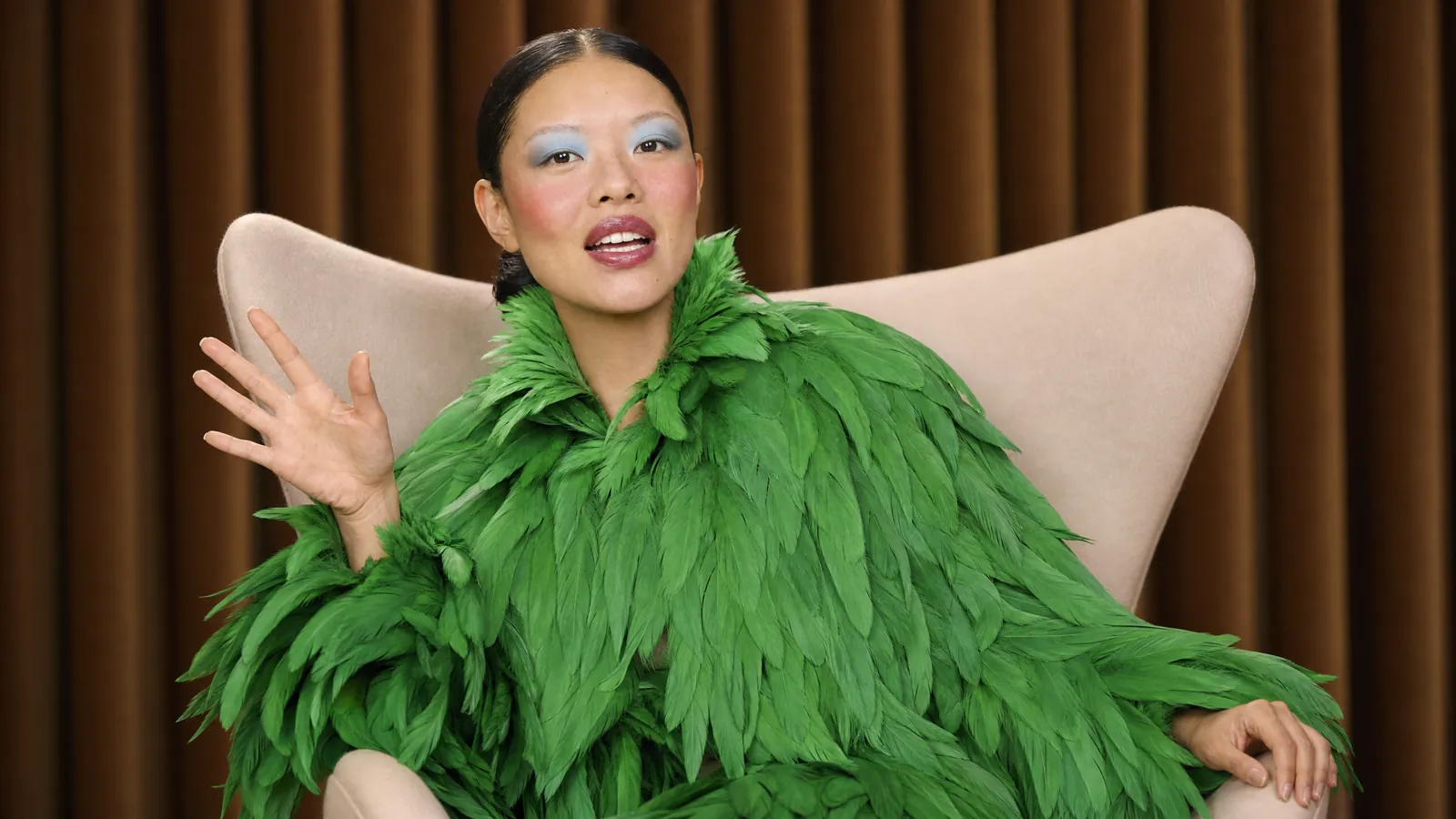
Make a video of yourself speaking, from a single photo and a script or recording.
You need one clear photo of your face and something for it to say.
Talking Head Video takes one photo of a person, plus a script or an audio recording, and generates a clip of that person speaking it. You do not need a camera, a studio or a recorded performance.
Use it for a channel intro, a product explainer, a course lesson or a message you want to send as video. Only use your own face, or a face you have clear permission to use.
Start with the right photo
The photo does most of the work. The app asks for a clear photo of a person, so give it one.
- Face the camera, eyes visible, mouth closed or relaxed.
- Even, soft light with no hard shadow across the face.
- Head and shoulders in frame, nothing covering the mouth or chin.
- A plain or simple background.
- A sharp, recent photo that looks like you do now.
If you would rather not use your own photo, the app also offers stock avatars.
Write or record the voice
You have two ways to give your avatar something to say.
Use your own voice. Record yourself reading the script and upload the audio. The presenter performs that recording, so it sounds like you.
Use a script. Paste text straight into Talking Head Video, or make the voiceover first in Speech Studio, where you paste a script and choose a voice. For other languages, Eleven Multilingual v2 covers 29 languages.
Keep the script short and spoken: one idea per sentence. Read it aloud once before you generate. A line that trips your tongue will trip the avatar too.
Work through the four steps
- Upload the photo. Open Talking Head Video and add your photo, or pick a stock avatar.
- Add the voice. Paste your script or upload your audio recording.
- Check the estimate. Credit cost depends on length and settings, so read the estimate in the app before you generate.
- Generate and review. Watch the clip once for speech timing, then again for the mouth and eyes.
A script you can adapt
Hi, I'm Sam. Every Friday I post one five-minute lesson on lighting a small room for video. This week: why your lamp should never face the camera. Stick around to the end for the one-light setup I use for everything.
Adapt the name, the subject and the promise to your own channel. Keep each sentence short enough to say in one breath.
Keep the same face across videos
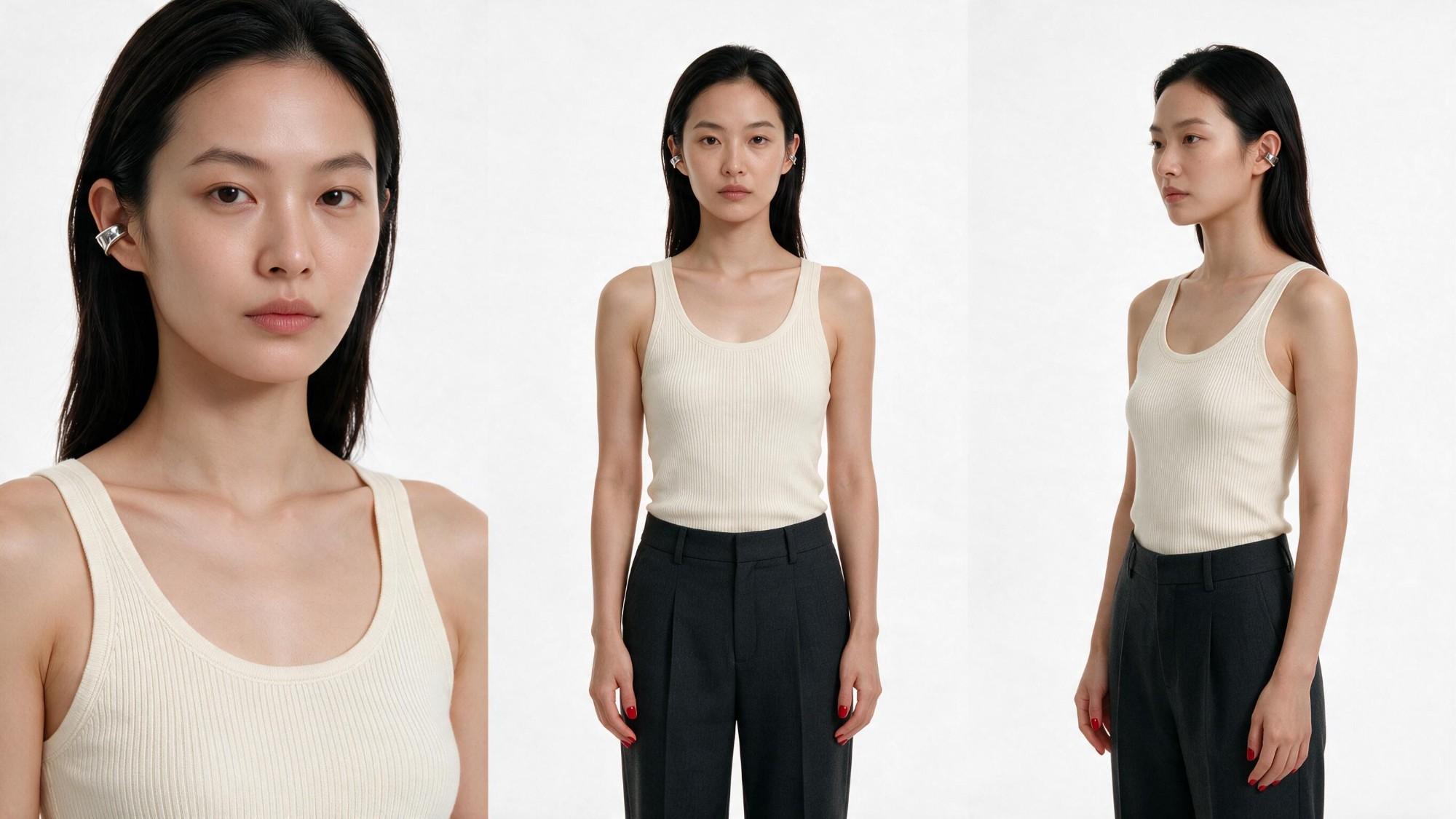
A series needs the same person every episode. In Character Studio, use a clear photo of yourself as the reference and the app locks that identity into a character sheet: a full-body shot, a three-quarter portrait and three expressions, in a realistic style or others such as anime or claymation.
A reference sheet is the same idea whichever app makes it: one person shown from several angles, with hair, face, wardrobe and proportions identical in every view. Here are two pairs of sheets made on Pika, each followed by a clip generated from them.
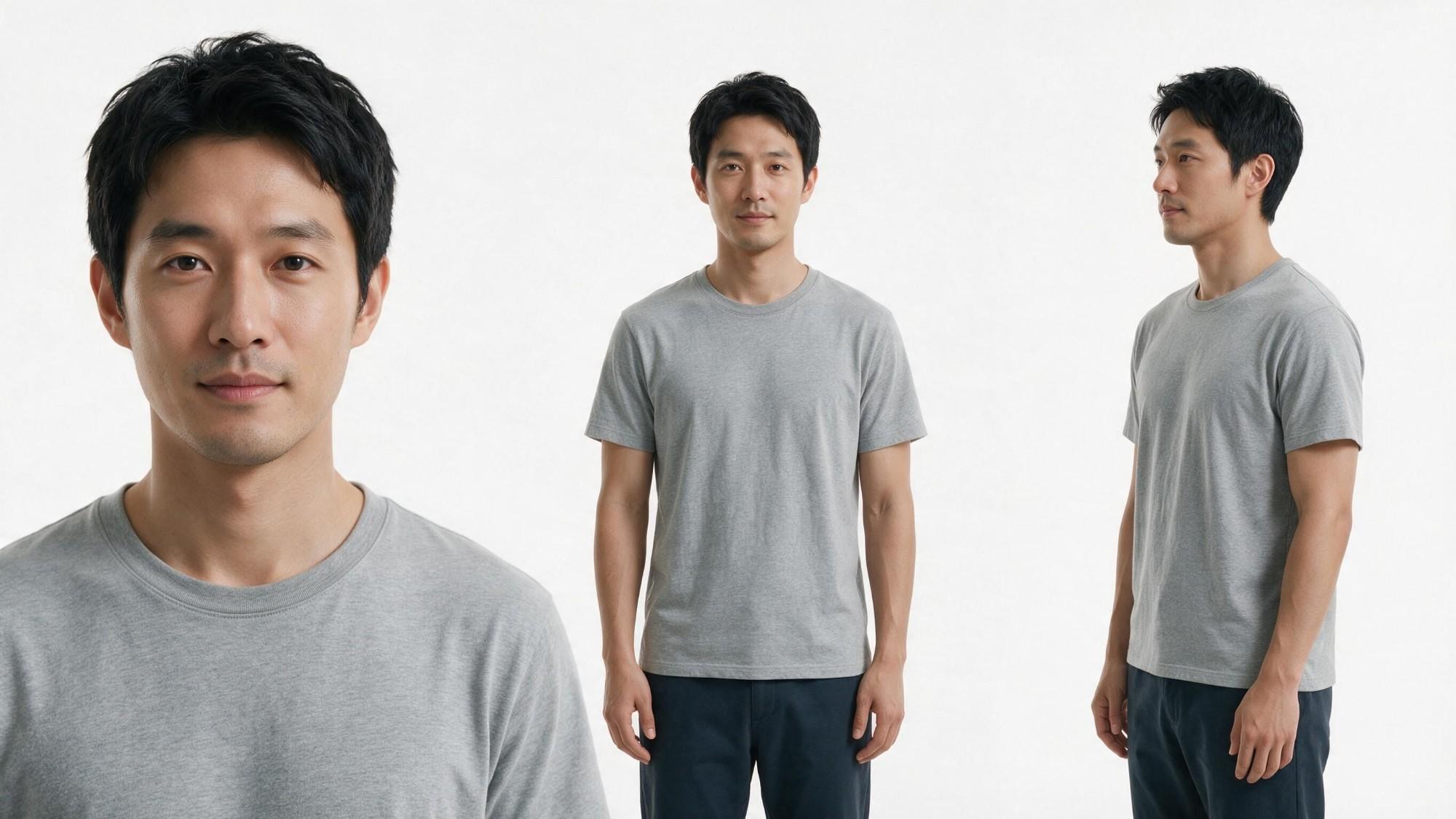
The second pair was written for a seaside soda ad, so the sheets fix a full outfit down to the shoes.
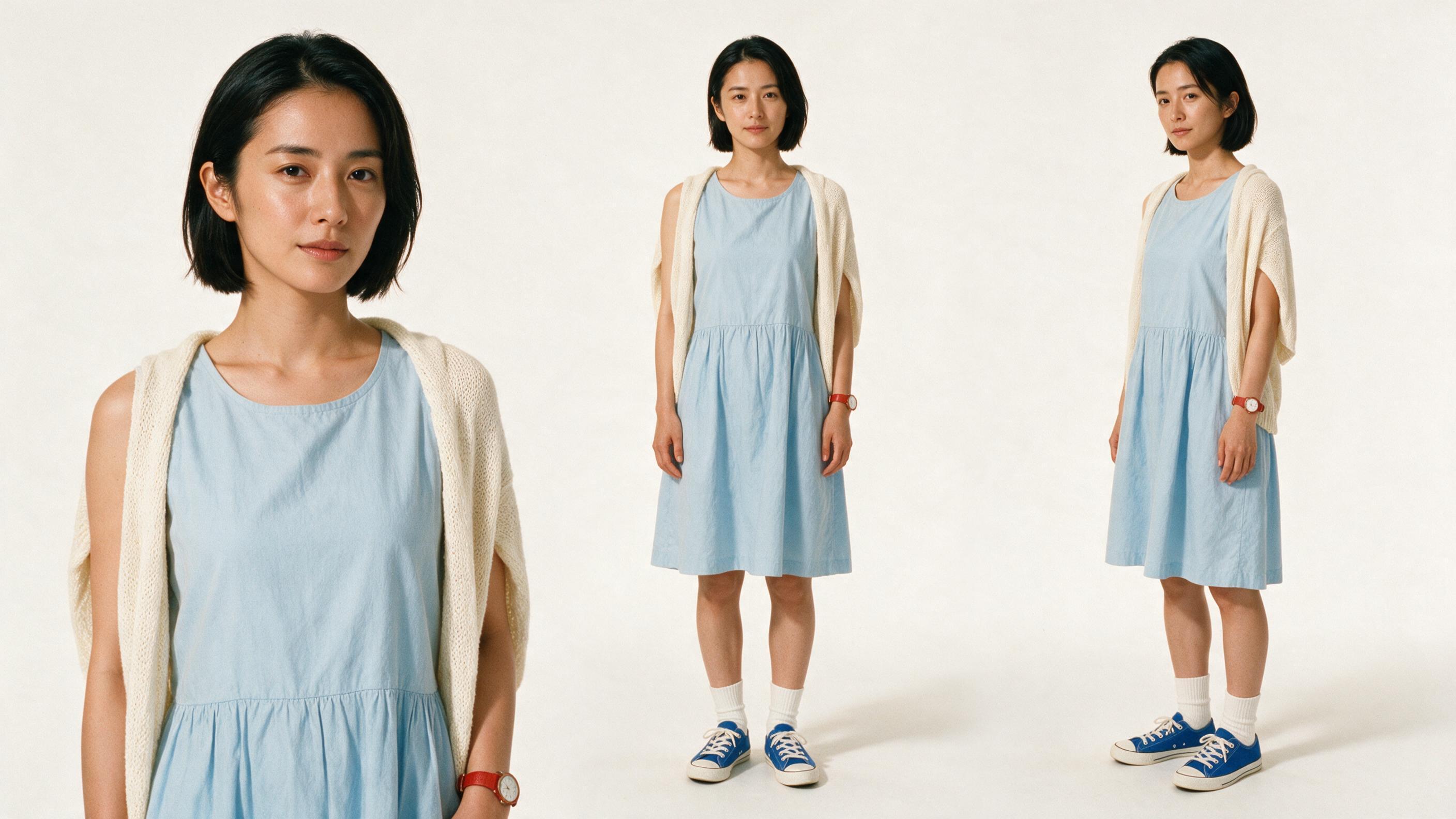
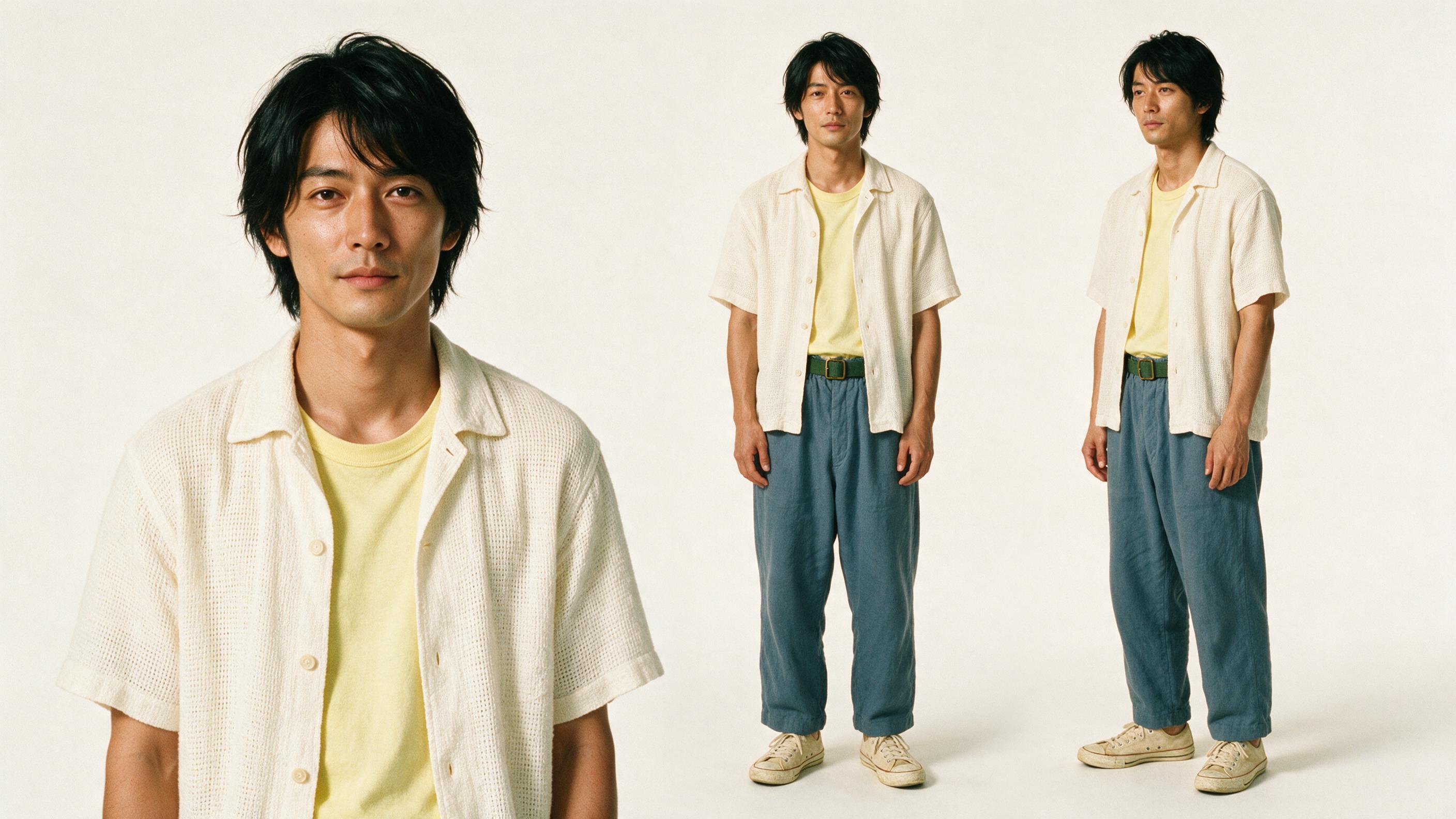
Save the character to your Library and it is there next session. From there you can send it into Image-to-Video, Short Film or Product Ad, and the same identity carries across apps.
Which app should you use?
Use Talking Head Video for a person speaking to camera from one photo. Use Pikaformance when the avatar should sing or perform rather than talk. Use Character Studio first when you plan more than one video with the same face.
To finish the clip, Dynamic Captions adds word-by-word captions timed to the speech, and Pika Soundtrack scores it with music and ambience.
Check the result before it leaves your desk
Watch the mouth against the audio: lips that close on a vowel or lag behind a hard consonant are the first sign of a weak photo. Check that the eyes blink and the head moves a little; a frozen face reads as a slideshow. Listen to the whole recording once more for a claim or a name you did not mean to publish.
Fix the problem at the right stage
| What you see | What to change |
|---|---|
| The mouth drifts or lags the audio | Use a sharper, front-facing photo with the mouth relaxed, then generate again |
| The expression looks stiff or wrong | Swap in a photo with softer light and no shadow across the face |
| The voice rushes or stumbles | Shorten the sentences and record a slower read |
| The face changes between videos | Build the character in Character Studio and reuse it from your Library |
| Wrong language or accent | Make the voiceover in Speech Studio or Eleven Multilingual v2 first, then upload the audio |
Credits and usage rights
Talking-head credit costs depend on length and settings, so check the estimate in the app before generating. Figures you can plan around (checked November 13, 2026): Starter is $10 a month for 600 credits, credit packs are 60 credits per $1 from $25, and an ElevenLabs v4 voiceover is 9 credits per 1,000 characters.
Every app is on every plan, Free included. Free has no monthly credits, so you buy a credit pack to generate. No Pika plan adds a watermark. The commercial licence starts with Starter; Free does not include it, and buying credits on Free does not add it. Current plans: pika.art/pricing.
FAQ
Can Pika make a lip-synced avatar from a single photo? Yes. Upload one clear photo to Talking Head Video, add a script or audio, and Pika generates a clip of that person speaking it.
Do I need to record my own voice? No. Paste a script and the app voices it, or make the voiceover in Speech Studio first. Record your own voice when it should sound like you.
Does the Free plan add a watermark? No. No Pika plan adds a watermark. Free does not include a commercial licence; that starts with Starter.
Can I make an avatar of someone else? Only with their clear permission. Use your own face or faces you have the right to use.
Make it happen here: Talking Head Video.