Seedream 5.5: Prompt Guide
Learn how to prompt Seedream 5.5 for precise edits, realism and text
Prompt Guide
Learn how to prompt Seedream 5.5 for precise edits, realism and text
Overview
Seedream 5.5 is ByteDance's image model for text-to-image and image editing. It is at its best on precise edits that leave the rest of the image alone, realistic people and products, and small or multilingual text. It can also make transparent images and split an image into separate layers.
How to write the prompt
- To edit, name the item as it looks now and what replaces it: "Replace the forest green belted trench coat with a camel cape coat."
- Say how the new item should sit, then end with what stays: "Change only the specified item. Keep all other clothing, identity, pose, hairstyle, background and lighting unchanged."
- Change one thing per round, and keep working from your latest result.
- For a photograph, give the person's age and features, what the clothes are made of, the framing, the light and the background. Ask for real skin texture outright.
- For a layout, state the aspect ratio and give each part of the frame a job, such as the left third and the right two-thirds. Then say what has to match across them.
- With references, say which one to follow exactly. When you combine several, say what each one brings and ask for scale, perspective and lighting to match.
- For text in the image, put the exact words in quotes, name the language and give each line a role, such as headline, date or price.
Change only what you name
With an image attached, the prompt is an instruction, not a description. In ByteDance's demo, one photo went through 85 rounds of single-item swaps, and every prompt ended with the same sentence about what stays.
Prompt
Replace the forest green belted trench coat with a camel cape coat. Keep the front open, with the same length and layering. Change only the specified item. Keep all other clothing, identity, pose, hairstyle, background and lighting unchanged.
Shoot it like a real photograph
Give the model the details a photographer would notice: the age in the face, the glasses, the weave of the fabric, the light and a plain background.
Prompt
[Subject]: A veteran elderly woodcarver A 60-year-old Asian man with short hair lightly streaked with silver, wearing half-rim reading glasses, with deeply etched facial lines. Wearing a distressed linen-textured Chinese front-opening short jacket, with visible coarse cotton-linen fibers. [Half-length view, arms hanging naturally, hyperrealistic portrait photography, 8K ultra-high definition, cinematic soft lighting, realistic skin texture with visible pores and fine facial hair, clean solid light gray background.]
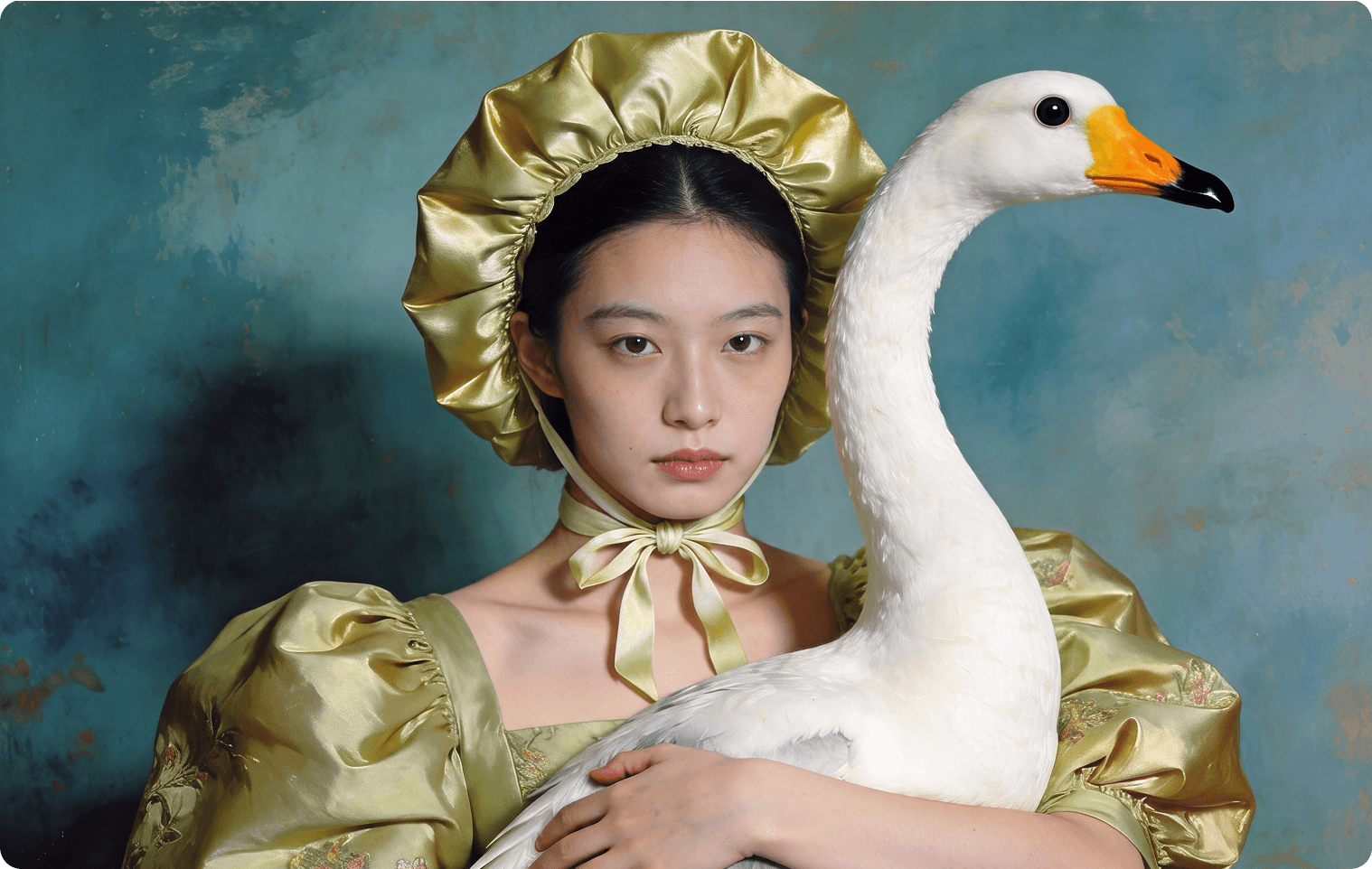
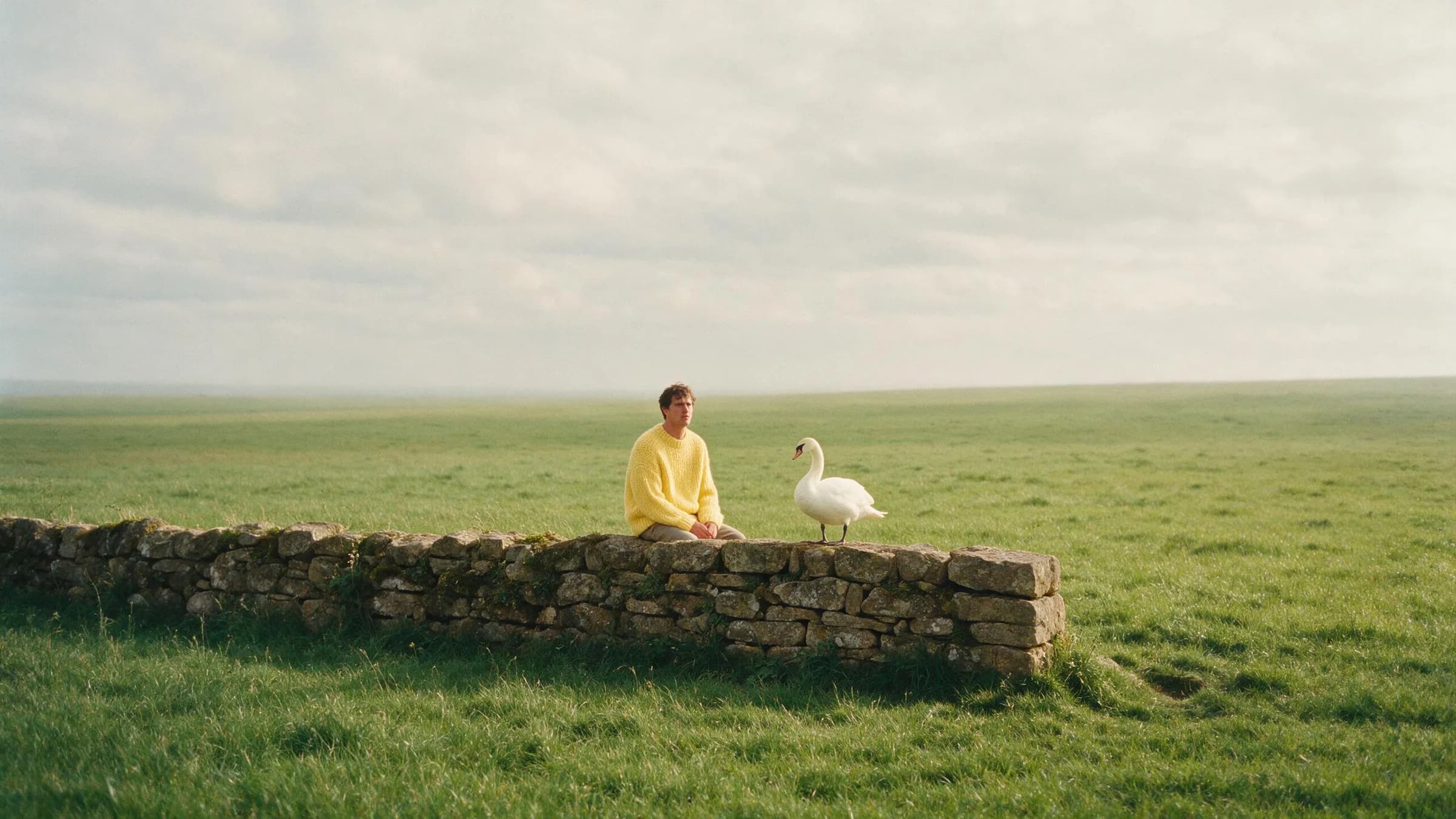
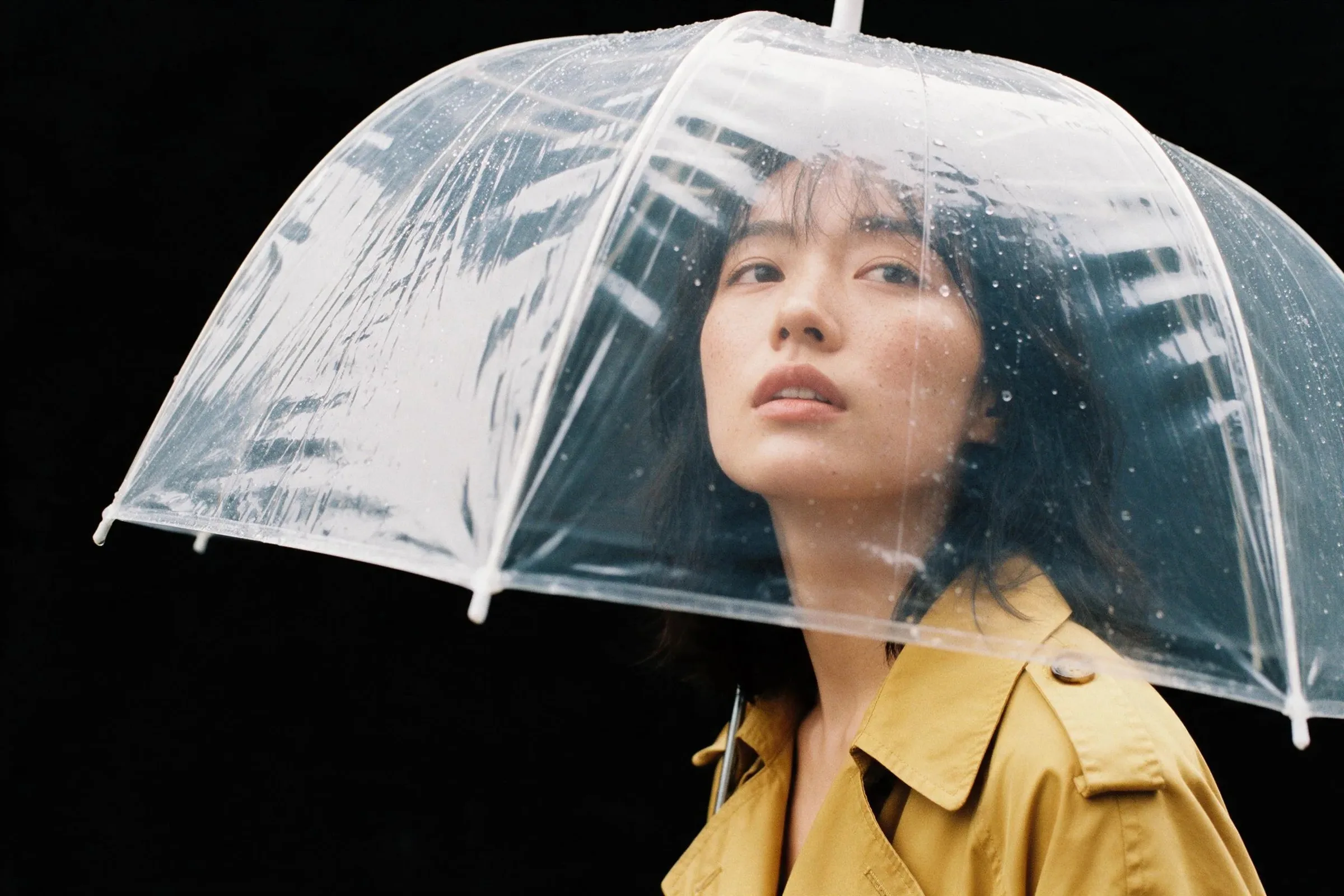
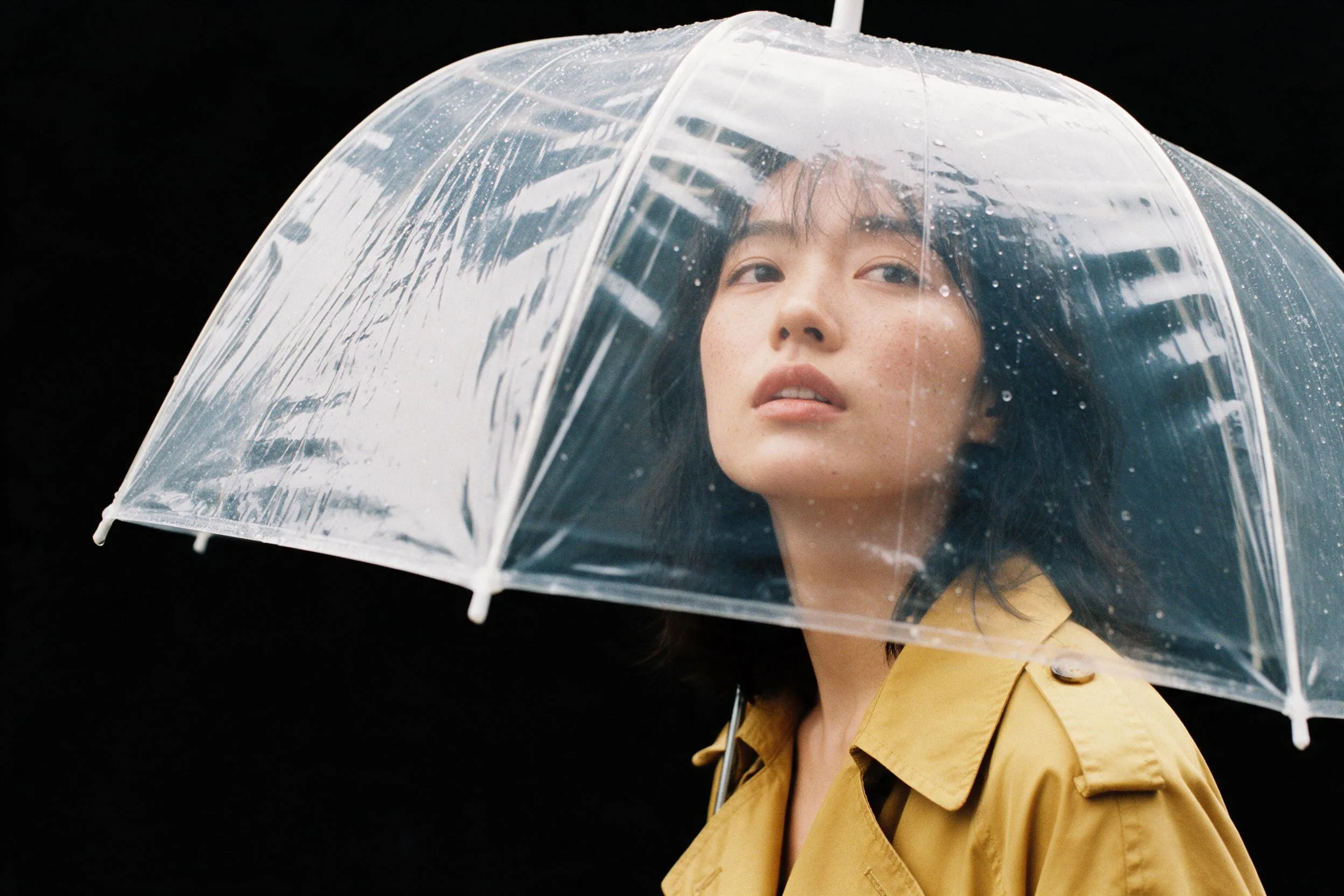
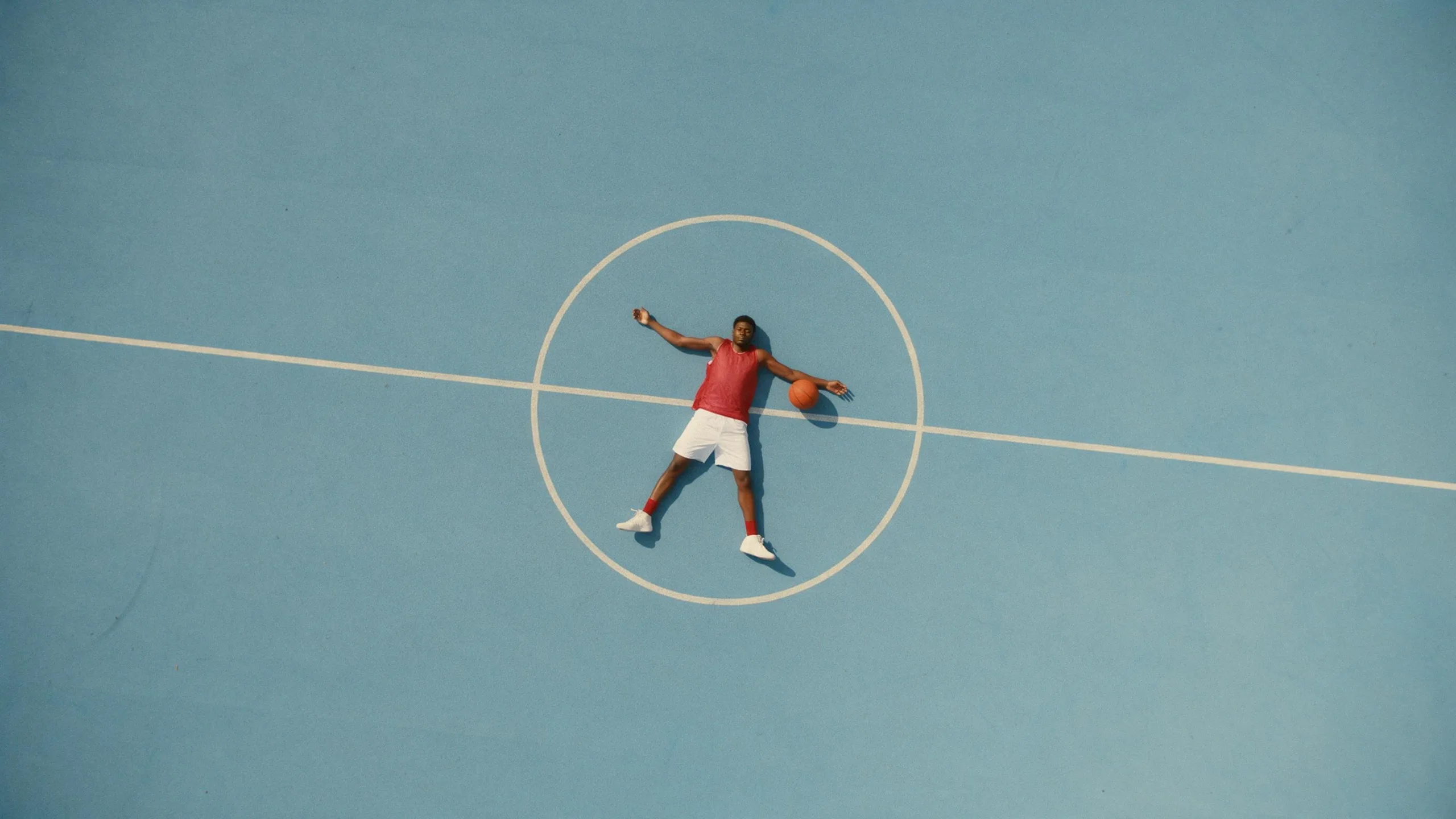
More realistic photographs from Seedream 5.5 on Pika:
Hold a character across views
Attach the character, assign each area of the frame, and spell out what has to line up from one view to the next.
Prompt
16:9 landscape composition. Follow the reference character exactly. The left third contains an extra-large high-definition facial close-up. The right two-thirds neatly display three full-body standing views of the character: front, profile, and back. Use a pure white background. Visual alignment: proportions must be strictly consistent across all angles, ensuring that character height, facial feature positions, and clothing folds align perfectly across views. Ultra-high definition, hyperrealistic 8K, CG modeling and rendering. Make the aspect ratio 16:9
Text that holds up in any language
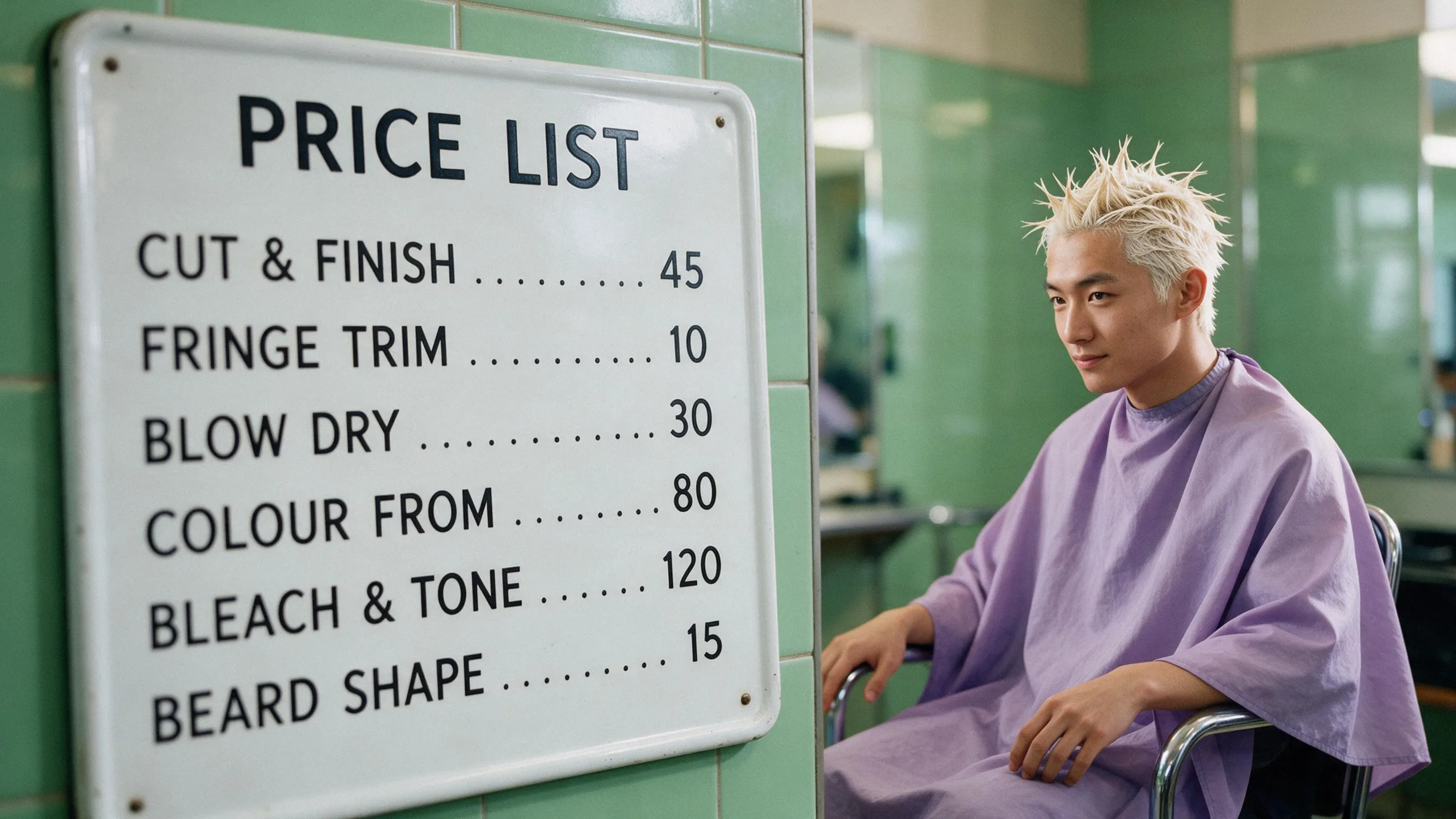
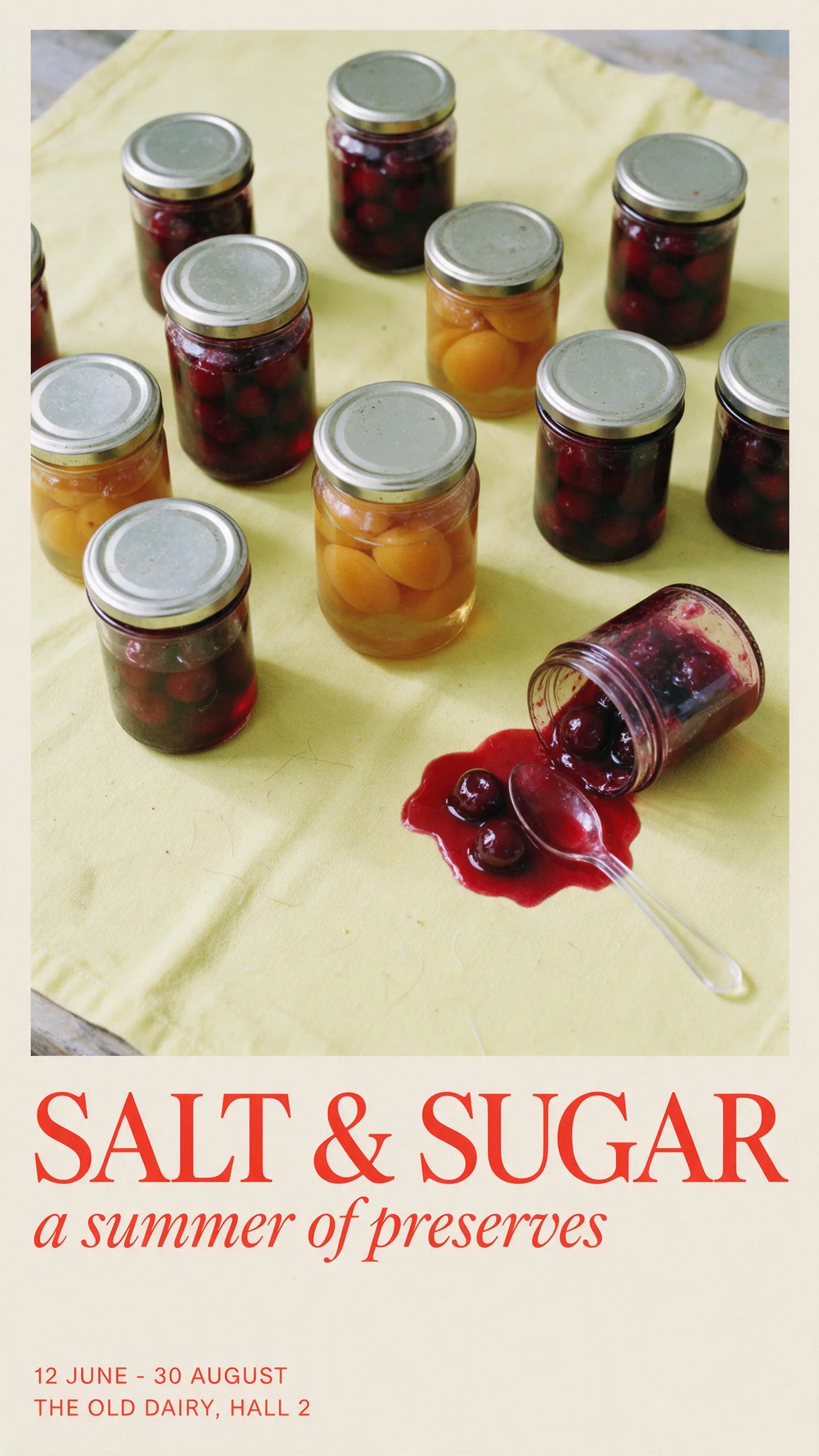
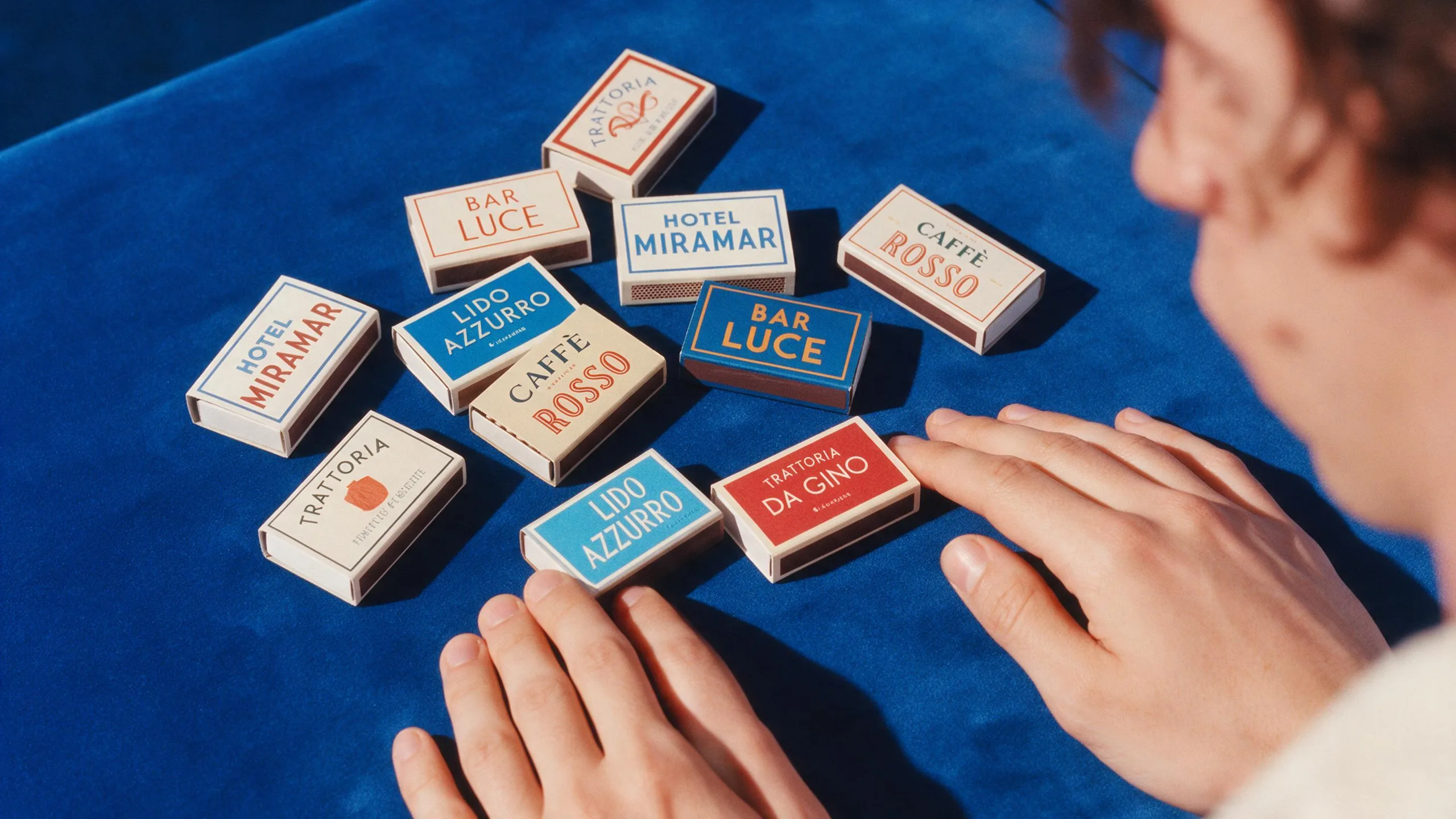
Seedream 5.5 handles small, dense copy for labels, posters, infographics and signs. Write out every word you want, and treat dates, times and prices as copy too.
Three from the Pika API: a price list sign, a poster with a headline, dates and an address, and matchboxes with small printed names.
A starting structure:
A [poster, label or sign] in [language]. Render this text exactly:
Headline: "[headline]"
Details: "[date, time, price]"
Small print: "[address or contact]"
Keep every line readable, with no repeated or extra text.
Make assets with no background
Seedream 5.5 can generate and edit images with transparent or semi-transparent backgrounds, so logos, game characters and interface pieces drop straight into a design. Ask for the transparent background outright, and name anything that should stay see-through, such as glass or a soft glow.
Split an image into layers
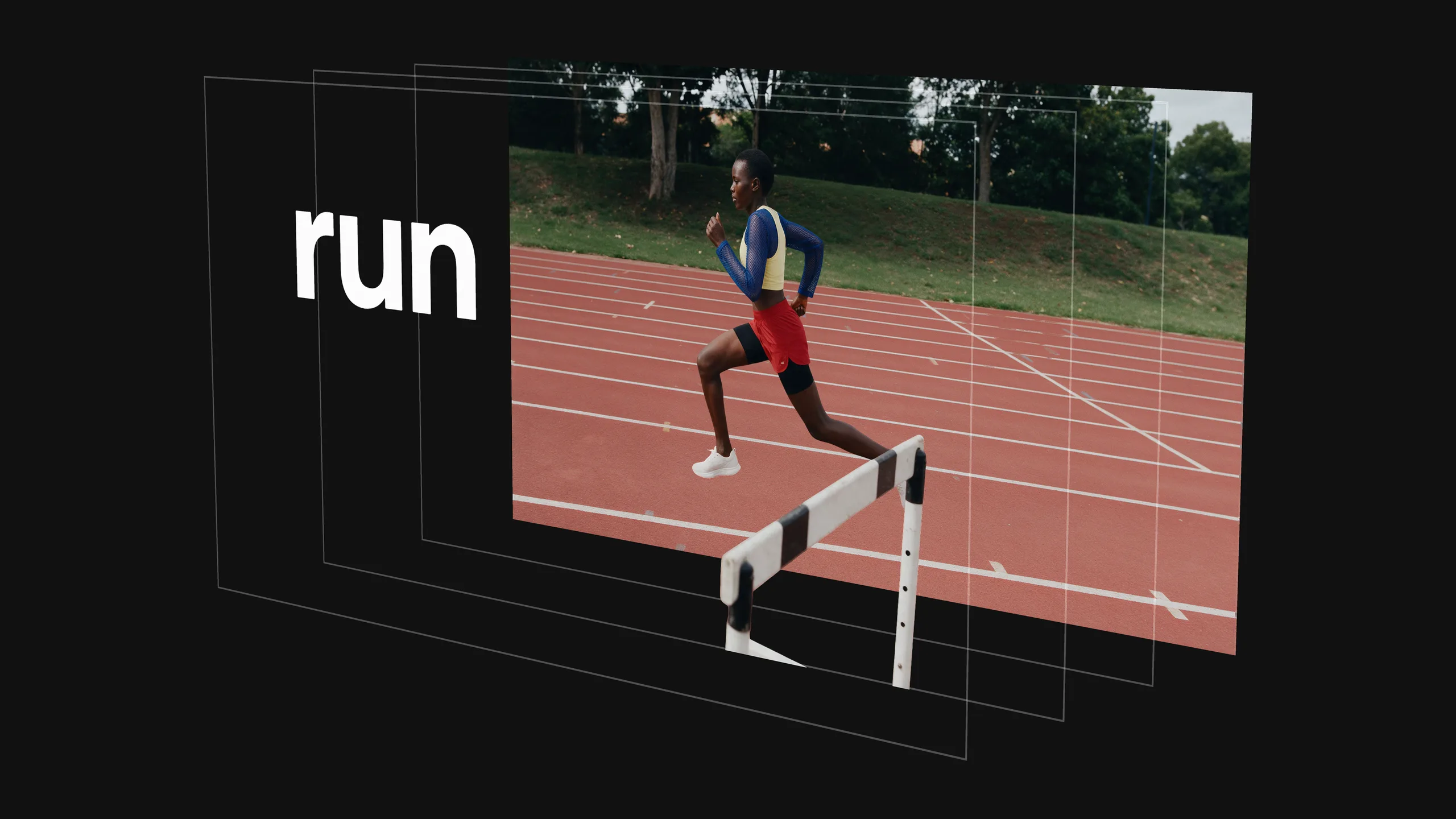
A finished image can be separated into up to 100 layers: one base and up to 99 transparent layers for its elements and text. Text recognition also returns the words in each text layer, which makes copy changes and localisation easier. Rewriting that text happens in your own design tool.
What to check before you finalise
Read every word of rendered text, including dates, prices and phone numbers, and look for repeated or missing lines. After a long run of edits, compare faces, hands and untouched areas against your original at full size. Place transparent assets on both light and dark backgrounds to check the edges.